


Created
: 2022.10.11













On MetaTrader4 (MT4) / MetaTrader5 (MT5), you can set global variables, which are stored in MT4/MT5 itself independently of programs such as Expert Advisors (EA) and indicators. All programs running on MT4/MT5 can use the global variables.
Please note that these global variables set on MT4/MT5 are different from the usual global variables that are declared outside of functions in the source code of EA and indicators.
 Stored for 4 weeks
The global variables for MT4/MT5 are stored for 4 weeks from the last access to MT4/MT5. Note that they will be deleted after 4 weeks of no access.
Here we will look at how to set global variables on MT4/MT5.
Switch between MT4/MT5 tabs to check the steps for each.


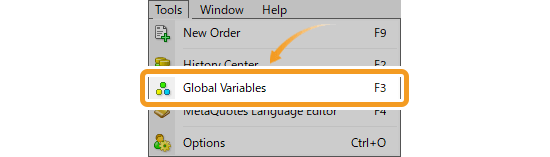
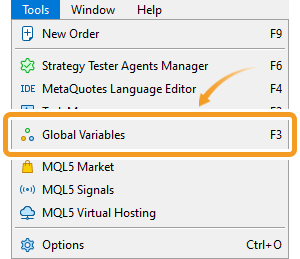
Click "Tools" in the menu and select "Global Variables".
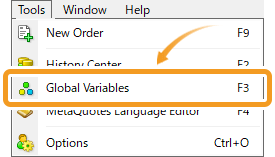
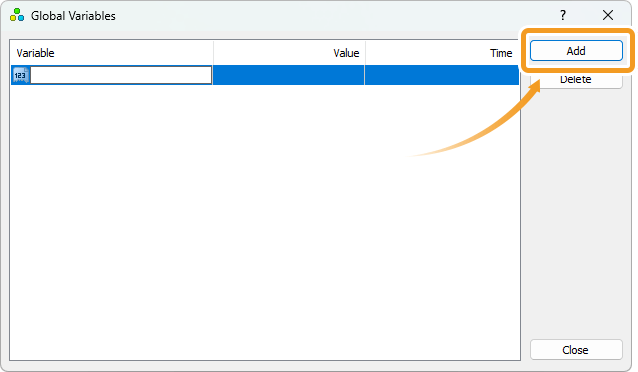
On the "Global Variables" window, you can add, edit, or remove a global variable.
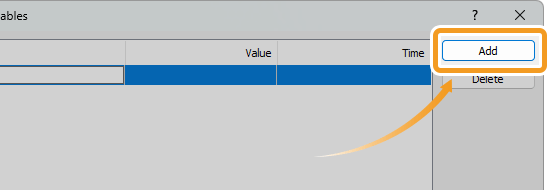
To add a global variable, click "Add" and set the variable name and value.
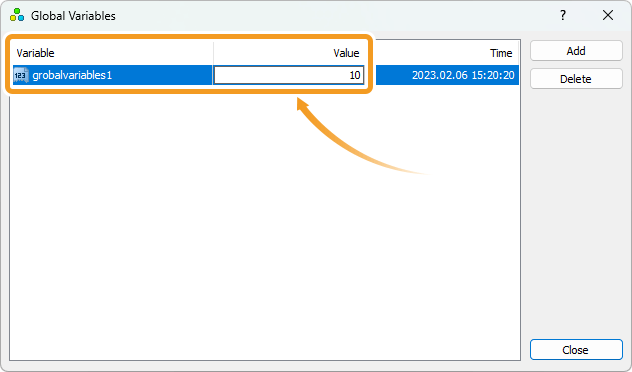
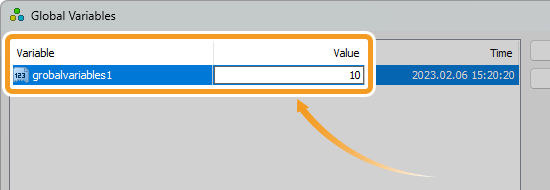
To edit a global variable, double-click the item you wish to change and enter the variable name or value.
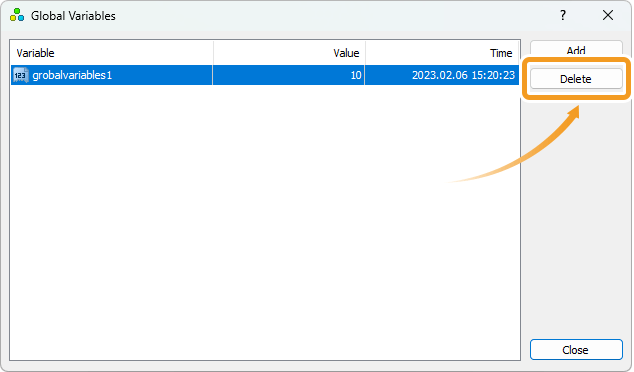
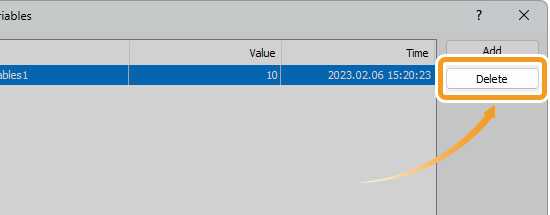
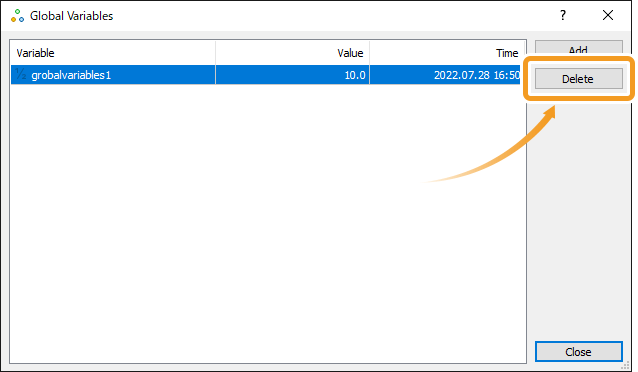
To delete a global variable, select the variable you wish to delete and click "Delete".
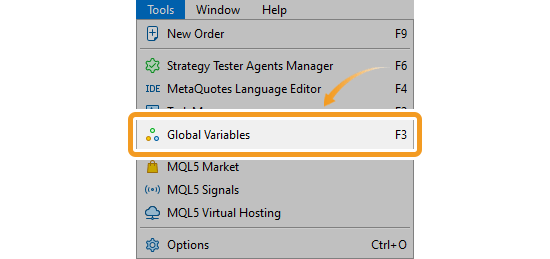
Click "Tools" in the menu and select "Global Variables".
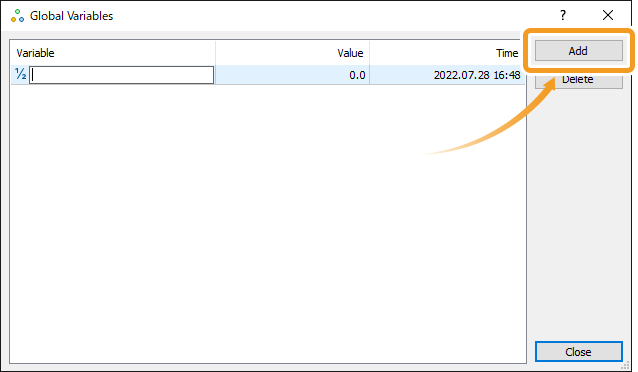
On the "Global Variables" window, you can add, edit, or remove a global variable.
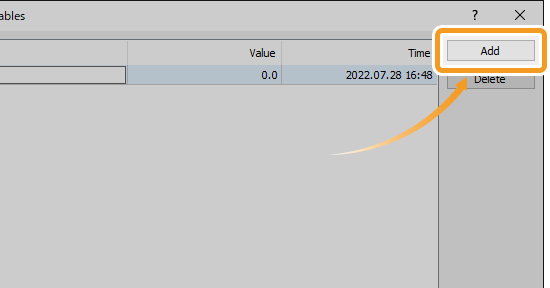
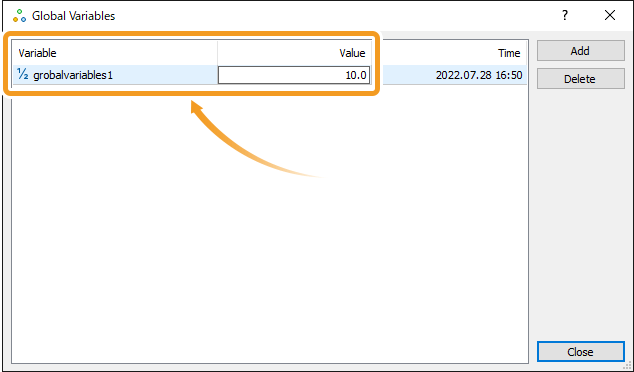
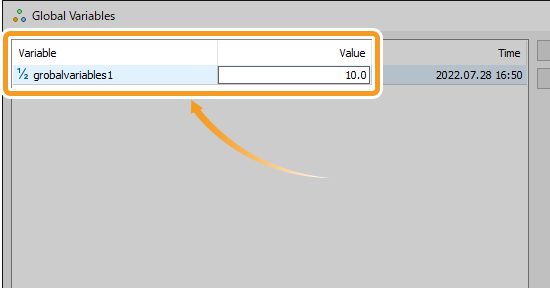
To edit a global variable, double-click the item you wish to change and enter the variable name or value.
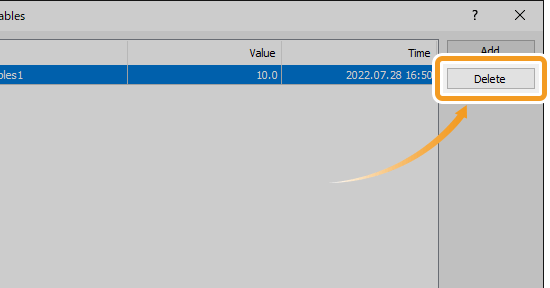
To delete a global variable, select the variable you wish to delete and click "Delete".

Created
: 2022.10.11

Last updated
: 2026.03.24

Nakamaru is a manual production consultant at FINTECS, a company that specializes in creating manuals for their clients.
With a wide range of experience from fintech to entertainment, he presents what user-friendly manuals should be like.
He works with numerous large corporations as an external manual production project manager.
【Business information】
http://www.fintecs.co.jp/profile/
Akira Takagi
Systems engineer, MetaTrader administrator


After graduating from Computer Science at the Uninove, Brazil, in 2014, he has worked on various systems development projects.
He participated as a developer in the launch of forex services in 2019. Since then, he has also been involved in the development of MetaTrader plugins and APIs. He is certified by MetaQuotes as a MetaTrader5 Administrator and active in consulting and advisory as well.
We hope you find this article useful. Any comments or suggestions will be greatly appreciated.
We are also looking for writers with extensive experience in forex and crypto to join us.
please contact us at [email protected].

MT4/MT5: Modify EA/indicator settings
2025.11.05
2026.06.19
On MetaTrader 4 (MT4) / MetaTrader 5 (MT5), you can customize the settings of Expert Advisors (EAs) and indicators applied to charts, supporting your trading strategy or visual preferences.

MT4/MT5: Create or load EA/indicator settings file
2025.10.06
2026.06.19
In MetaTrader 4 (MT4) and MetaTrader 5 (MT5), you can create or load a settings file to save and reuse your customized parameters. This helps save time each time you apply EAs and indicators to a chart.

MT4/MT5: Install custom indicator
2023.03.17
2026.03.18
On MT4/MT5, you can install indicators of your choice aside from the pre-installed technical indicators. The indicators installed by users are called custom indicators.

MT4/MT5: Backtest Expert Advisor (EA)
2022.10.28
2026.03.18
You can perform backtests on automated trading programs known as Expert Advisor (EA) using MT4/MT5's Strategy Tester feature. Here we will look at how to perform Expert Advisor (EA) backtests on MT4/MT5.

MT4/MT5: Save Expert Advisor (EA) testing report
2022.10.28
2026.03.24
Here we will look at how to save an Expert Advisor (EA) testing report on MT4/MT5. With MT4/MT5's Strategy Tester feature, you can save a result of the Expert Advisor (EA) backtest.
MT4/MT5: Install Expert Advisor (EA)
2022.10.19
2026.03.25
To use a third-party Expert Advisor (EA), you must first install it on MT4/MT5. Save the Expert Advisor (EA) files to the "Experts" folder of MT4/MT5, and restart MT4/MT5 to complete the installation.
Disclaimer:
All information and content provided on this website is provided for informational purposes only and is not intended to solicit any investment. Although all efforts are made in order to ensure that the information is correct, no guarantee is provided for the accuracy of any content on this website. Any decision made shall be the responsibility of the investor and Myforex does not take any responsibility whatsoever regarding the use of any information provided herein.
The copyright in our content belongs to us.
We welcome your use of our content within appropriate limits, including use through our sharing features, sharing on social media, and quotation. However, please refrain from unauthorized reuse, including but not limited to commercial use, reproduction with modification of content, or reproduction on websites that compete with us. We may take necessary measures, including but not limited to deletion of the relevant content, if we consider that the content has been used in an inappropriate or unauthorized manner.



Myforex uses cookies to improve the convenience and functionality of this website. This website may include cookies not only by us but also by third parties (advertisers, log analysts, etc.) for the purpose of tracking the activities of users. Cookie policy