- English



- English
- What's Myforex
- Share
- Use tools
- Get information
- What's New
- Help center
- About us
- Customer support
- Terms and policies


-

-
 PortfolioShare your portfolio and performance in real time
 -
 ContestsContests held by retail brokers around the world
-
-
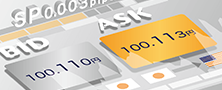 Real-time spread comparisonCompare spreads of major retail brokers in real time
 -
 Volatility analysisVisualize volatility as a measure of daily market activity
 -
 Swap point comparisonCompare buy and sell swap values for each broker by symbol
 -
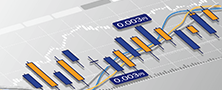 Market rates & chartsCheck prices for all instruments offered by each broker
 -
 IndicatorsProviding in-house developed indicators for MT4/MT5
 -
 Trading calculatorsCalculation tools for each broker to help you trade


Search results
280 Search results
Show:
Total: 280
Show:
-
MT4/MT5: Draw Elliott corrective wave
Here we'll look over the steps on how to display the Elliott corrective wave on the chart in MetaTrader4 (MT4) / MetaTrader5 (MT5) app for Android and iOS mobile devices. The Elliott Wave, an analysis method developed by Ralph Nelson Elliott (USA), states that markets have a cycle. The Elliott corrective wave moves in the opposite direction as the one larger trend and forms a dip/rally. Use it to determine if the movement signals a trend reversal or a temporary correction.
See details
-
MT4/MT5: Draw rectangle
Here we'll look over the steps on how to display a rectangle on the chart in MetaTrader4 (MT4) / MetaTrader5 (MT5) app for Android and iOS mobile devices. On MT4/MT5, you can display 3 types of shapes on the chart, a rectangle, a triangle, and an ellipse. The color and shape of the rectangle can be changed to help identify the highest and lowest levels of the range-bound market.
See details
-
MT4/MT5: Draw triangle
Here we'll look over the steps on how to display a triangle on the chart in MetaTrader4 (MT4) / MetaTrader5 (MT5) app for Android and iOS mobile devices. On MT4/MT5, you can display 3 types of shapes on the chart, a rectangle, a triangle, and an ellipse. The color and shape of the triangle can be changed to help identify key chart patterns such as flags.
See details
-
MT4/MT5: Draw ellipse
Here we'll look over the steps on how to display an ellipse on the chart in MetaTrader4 (MT4) / MetaTrader5 (MT5) app for Android and iOS mobile devices. On MT4/MT5, you can display 3 types of shapes on the chart, a rectangle, a triangle, and an ellipse. The color and shape of the ellipse can be changed to help analyze chart patterns and identify range-bound markets.
See details
-
MT4/MT5: Backtest Expert Advisor (EA)
You can perform backtests on automated trading programs known as Expert Advisor (EA) using MT4/MT5's Strategy Tester feature. Here we will look at how to perform Expert Advisor (EA) backtests on MT4/MT5.
See details
-
MT4/MT5: Save Expert Advisor (EA) testing report
Here we will look at how to save an Expert Advisor (EA) testing report on MT4/MT5. With MT4/MT5's Strategy Tester feature, you can save a result of the Expert Advisor (EA) backtest.
See details
-
MT4/MT5: Check news
Here we'll look over the steps on how to check the news from MetaQuotes and the media each broker partners with on the MetaTrader4 (MT4) / MetaTrader5 (MT5) app on Android and iOS mobile devices. Please note that news will not be displayed if your broker does not partner with any media, or the news from MetaQuotes is not enabled.
See details
-
MT4/MT5: Check MetaQuotes ID
Here we will look at how to check your MetaQuotes ID on MetaTrader4 (MT4) / MetaTrader5 (MT5) app for Android and iOS mobile devices. By registering the MetaQuotes ID on your PC's MT4/MT5, you can receive push notifications on your phone or tablet.
See details
-
MT4/MT5: Check messages from broker
Here we'll look over the steps on how to check the messages from brokers and MetaQuotes on the MetaTrader4 (MT4) / MetaTrader5 (MT5) app on Android and iOS mobile devices. Please note that messages will not be displayed if your broker is not sending emails, or if the message from MetaQuotes is not enabled.
See details
-
MT4/MT5: Draw Fibonacci time zones
Here we'll look over the steps on how to display the Fibonacci time zones on the chart in MetaTrader4 (MT4) / MetaTrader5 (MT5) app for Android and iOS mobile devices. Fibonacci time zones draw vertical Fibonacci lines relative to the time axis, based on the same idea as the Fibonacci retracement. Use these as reference points to determine when the trend will change.
See details
-
MT4/MT5: Install Expert Advisor (EA)
To use a third-party Expert Advisor (EA), you must first install it on MT4/MT5. Save the Expert Advisor (EA) files to the "Experts" folder of MT4/MT5, and restart MT4/MT5 to complete the installation.
See details
-
MT4/MT5: Draw Fibonacci retracement
Here we'll look over the steps on how to display the Fibonacci retracement on the chart in MetaTrader4 (MT4) / MetaTrader5 (MT5) app for Android and iOS mobile devices. Fibonacci retracement is a tool often used to determine the temporary retrace price. It helps you predict a dip/rally in a trending market.
See details
-
MT4/MT5: Draw Gann line
Here we'll look over the steps on how to display the Gann line on the chart in MetaTrader4 (MT4) / MetaTrader5 (MT5) app for Android and iOS mobile devices. The Gann line is the line between the low and high. Defining the most important line drawn in a 45-degree angle as the 1x1, you can predict the strength of the trend from its length and the price gap.
See details
-
MT4/MT5: Create Expert Advisor (EA)
On MT4/MT5, you use a programming tool called MetaEditor and a dedicated language called MQL4 or MQL5 to create an Expert Advisor (EA).
See details
-
MT4/MT5: Draw Gann fan
Here we'll look over the steps on how to display the Gann fan on the chart in MetaTrader4 (MT4) / MetaTrader5 (MT5) app for Android and iOS mobile devices. In addition to the most important line of the Gann theory, the 1x1 or 45-degree line, it draws nine other lines: 1x8 (82.5 degrees), 1x4 (75 degrees), 1x3 (71.25 degrees), 1x2 (63.75 degrees), 2x1 (26.25 degrees), 3x1 (18.75 degrees), 4x1 (15 degrees), and 8x1 (7.5 degrees). Each fan can be used as a guide for support and resistance levels.
See details
-
MT4/MT5: Create indicator
If you wish to create an indicator on MT4/MT5, you can do so by using a tool called MetaEditor, which uses a special programming language for MT4/MT5 called MQL4/MQL5.
See details
-
MT4/MT5: Change language on MetaEditor
MT4/MT5's MetaEditor supports a total of 33 and 52 languages respectively. After changing the display language, you will need to restart MetaEditor, which is a tool for developing Expert Advisors (EA) on MT4/MT5.
See details
-
MT4/MT5: Set global variables
On MT4/MT5, you can set global variables, which are stored in MT4/MT5 itself independently of programs such as Expert Advisors (EA) and indicators.
See details
-
MT4: Prevent objects to be taken over when switching charts
Here we'll look over the steps on the setting to prevent objects from being taken over when switching charts on MetaTrader4 (MT4) app for Android mobile devices. Turn on the Independent charts feature to prevent objects from being taken over when switching charts.
See details
-
MT4/MT5: Display arrowed line
Here we'll look over the steps on how to display an arrowed line on the chart in MetaTrader4 (MT4) / MetaTrader5 (MT5) app for Android and iOS mobile devices. This object is used to determine market direction and turning points.
See details


Disclaimer:
All information and content provided on this website is provided for informational purposes only and is not intended to solicit any investment. Although all efforts are made in order to ensure that the information is correct, no guarantee is provided for the accuracy of any content on this website. Any decision made shall be the responsibility of the investor and Myforex does not take any responsibility whatsoever regarding the use of any information provided herein.
The content provided on this website belongs to Myforex and, where stated, the relevant licensors. All rights are reserved by Myforex and the relevant licensors, and no content of this website, whether in full or in part, shall be copied or displayed elsewhere without the explicit written permission of the relevant copyright holder. If you wish to use any part of the content provided on this website, please ensure that you contact Myforex.



Myforex uses cookies to improve the convenience and functionality of this website. This website may include cookies not only by us but also by third parties (advertisers, log analysts, etc.) for the purpose of tracking the activities of users. Cookie policy