- English


- English
- What's Myforex
- Share
- Use tools
- Get information
- What's New
- Help center
- About us
- Customer support
- Terms and policies


-

-
 PortfolioShare your portfolio and performance in real time
 -
 ContestsContests held by retail brokers around the world
-
-
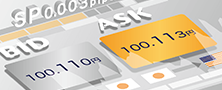 Real-time spread comparisonCompare spreads of major retail brokers in real time
 -
 Volatility analysisVisualize volatility as a measure of daily market activity
 -
 Swap point comparisonCompare buy and sell swap values for each broker by symbol
 -
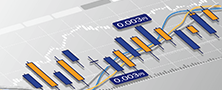 Market rates & chartsCheck prices for all instruments offered by each broker
 -
 IndicatorsProviding in-house developed indicators for MT4/MT5
 -
 Trading calculatorsCalculation tools for each broker to help you trade

Search results
280 Search results
Show:
Total: 280
Show:
-
MT4/MT5: Check and get logs
On MT4/MT5, you can check detailed action logs in the "Journal" tab of the Terminal/Toolbox or by selecting "Open Data Folder" from the menu. Here we will look at how to check and get logs.
See details
-
MT4/MT5: Save and print trade history report
You can save your trade history in HTML or XLSX (Excel) format on MT5 and in HTML on MT4. It can be printed and used as an annual account statement for your tax returns.
See details
-
MT5: Display economic calendar
You can check the economic calendar of major countries in MetaTrader5 (MT5). Events can be filtered by priority, currency, and country. You can check the calendar from a month ago, and a month ahead. You can display the calendar on the chart as well.Here we'll take a look at how to display and adjust the economic calendar settings.(*1) (*1)On MetaTrader4 (MT4), the economic calendar is not available. Step 1 Click the "Calendar" tab in the Toolbox. Step 2 Double-click the event you want to check. Your browser will launch and display detailed information about the event. Step 3 To show or hide the calendar on the chart, right-click in the Toolbox and hover the pointer over "Show on Charts". Select "Delete All Events" to hide it, or select "Add All Events" to show it. Step 4 To change the period of the calendar to show, right-click in the Toolbox and choose your preferred period. Step 5 The calendar can be filtered by priority, currency, and country. Move the pointer over "Priority" to filter by impact, "Currency" to filter by currency, or "Country" to filter by country, and uncheck the unnecessary items.
See details
-
MT4/MT5: Change units for trade volume and P/L
On MT4/MT5, you can change the units used for the profit/loss in the Terminal/Toolbox, where your positions, pending orders, and trade history are shown. MT5 also lets you change the units for the trade volume.
See details
-
MT4/MT5: Check trade history
On MT4/MT5, you can check the past trade history from the "Account History" or "History" tabs in the Terminal/Toolbox. By customizing the period, you can check all trade history right from the beginning. Here we will look at how to check your trade history on MT4/MT5.
See details
-
MT4/MT5: Display arrows and other objects
On MT4 / MT5, you can display objects such as an upward arrow and a downward arrow on a chart. There are 11 types of objects on MT5, and 8 types on MT4 by default, while other objects can also be chosen from the list.
See details
-
MT5: Create custom symbol
In MT5, you can create custom symbols, import historical data, and display the price on your chart. Please note that you cannot delete or overwrite the historical data in MT5, so you must create a custom symbol for every historical data you wish to import.
See details
-
MT4/MT5: Display rectangle/triangle/ellipse
On MT4/MT5, you can display 3 types of shapes on the chart, a rectangle, a triangle, and an ellipse. You can change the colors, or show them behind the chart. Use these tools to analyze the market with better precision.
See details
-
MT4/MT5: Import historical data
On MT4/MT5, you can import historical data in your preferred timeframe. Here we will look at how to import historical data on MT4/MT5. Switch between MT4/MT5 tabs to check the steps for each.
See details
-
MT4/MT5: Export historical data
You can export historical data in different timeframes on MT4/MT5. Here we will look at how to export historical data on MT4/MT5. Switch between MT4/MT5 tabs to check the steps for each.
See details
-
MT4/MT5: Download historical data
On MT4/MT5, you can download historical data in your preferred timeframe. Here we will look at how to download historical data on MT4/MT5. Switch between MT4/MT5 tabs to check the steps for each.
See details
-
MT4/MT5: Use Fibonacci tools
On MT4 / MT5, you can use the six technical indicators based on the Fibonacci sequence: Fibonacci retracement, Fibonacci time zones, Fibonacci fan, Fibonacci arcs, Fibonacci channel, and Fibonacci expansion.
See details
-
MT5: Use Elliott Wave
The Gann theory, developed by the legendary trader W.D.Gann (USA), is a technical indicator that focuses on time and price. You can use the Gann line, Elliott Wave, and Gann grid in MT5.
See details
-
MT4/MT5: Draw Andrews' Pitchfork
On MT4/MT5, you can draw the Andrews' Pitchfork made up of 3 parallel lines. The line on top represents the resistance line and the bottom represents the support line. Use it to predict break points.
See details
-
MT4/MT5: Draw regression channel
On MT4 / MT5, you can draw the linear regression channel based on the ideas of statistics and linear regression. It is made up of 3 lines: the linear regression line, and 2 lines on top and bottom. The line above represents the resistance line and the bottom line represents the support line.
See details
-
MT4/MT5: Draw standard deviation channel
On MT4/MT5, you can draw the standard deviation channel made up of 3 lines, the linear regression line and the 2 lines above and below it. This technical indicator is based on the ideas of statistics, linear regression, and standard deviation. Use it to predict break points.
See details
-
MT4/MT5: Draw equidistant channel
On MT4 / MT5, you can draw the equidistant channel consisting of the trendline and the channel line parallel to the trendline. Draw the trendline first, then adjust the channel line accordingly.
See details
-
MT5: Display two charts
On MetaTrader5 (MT5) app for Android mobile devices, two charts can be displayed together. Charts can be arranged vertically or horizontally, allowing you to view two charts at the same time, even on the small screen of your phone.
See details
-
MT4/MT5: Change timeframe
Here we'll look over the steps on how to change the timeframe of the chart in MetaTrader4 (MT4) / MetaTrader5 (MT5) app for Android and iOS mobile devices. There are 9 different timeframes available: M1, M5, M15, M30, H1, H4, D1, W1, MN.
See details
-
MT4/MT5: Draw vertical line
Here we'll look over the steps on how to display a vertical line parallel to the price axis on the chart in MetaTrader4 (MT4) / MetaTrader5 (MT5) app for Android and iOS mobile devices. Place multiple vertical lines to see the change in price over a specific period.
See details


Disclaimer:
All information and content provided on this website is provided for informational purposes only and is not intended to solicit any investment. Although all efforts are made in order to ensure that the information is correct, no guarantee is provided for the accuracy of any content on this website. Any decision made shall be the responsibility of the investor and Myforex does not take any responsibility whatsoever regarding the use of any information provided herein.
The content provided on this website belongs to Myforex and, where stated, the relevant licensors. All rights are reserved by Myforex and the relevant licensors, and no content of this website, whether in full or in part, shall be copied or displayed elsewhere without the explicit written permission of the relevant copyright holder. If you wish to use any part of the content provided on this website, please ensure that you contact Myforex.



Myforex uses cookies to improve the convenience and functionality of this website. This website may include cookies not only by us but also by third parties (advertisers, log analysts, etc.) for the purpose of tracking the activities of users. Cookie policy