


- English


- English
- What's Myforex
- Share
- Use tools
- Get information
- What's New
- Help center
- Customer support
- Terms and policies




-

-
 Real-time spread comparisonCompare spreads of major retail brokers in real time
-
 Volatility analysisVisualize volatility as a measure of daily market activity
-
 Swap point comparisonCompare buy and sell swap values for each broker by symbol
-
 Market rates & chartsCheck prices for all instruments offered by each broker
-
 MT4/MT5 indicatorsProviding in-house developed indicators for MT4/MT5
-
 Trading calculatorsCalculation tools for each broker to help you trade

【MT4/MT5】Moving Average Deviation Rate Indicator

【MT4/MT5】Moving Average Deviation Rate Indicator
- Overview
- How to install
- How to set up

Display:


The Moving Average Deviation Rate Indicator measures the distance between price and the moving average in percentage or pips, visualizing overextensions and reversals to help identify potential entry and exit opportunities.

Feature: Monitor MA deviation rate in percentage or pips
Display as a histogram, a single line, or multiple lines
There are three Display Modes to view the deviation rate: a histogram, a single line, or multiple lines covering different periods. The histogram view highlights changes in the positive and negative ranges using different colors, while the multi-line view lets you compare deviation rates across different periods, from short-term to long-term. Switch between these views as needed for your analysis.


Deviation rate in percentage and pips
In the Deviation Unit parameter, you can choose whether to display the rate in pips or as a percentage relative to the moving average. In the percentage view, deviation can be tracked consistently even when market price levels change. The pips view lets you use the values directly for pip-based trading without conversion. Since both units indicate the same deviation size, either view is useful for setting TP and SL levels.


Spot overextension with standard deviation levels
When Level Mode is set to automatically calculate levels based on standard deviation, two sets of inner and outer lines are plotted around the zero line based on the recent variability of the deviation rate. The inner levels serve as an early indication of overextension, and the outer levels trigger buy and sell signals. You can identify the overextension levels based on real-time price movement without manually adjusting the levels for each symbol or timeframe. If you prefer lines at fixed values, simply switch the mode.


Get signals and alerts when deviation rates cross the levels
When Signal Mode is set to SIGNAL_EXTREME_RETURN, buy and sell arrows appear when the deviation rate returns inside the standard deviation range. Buy signals occur when the deviation rate crosses back above the lower line, while sell signals occur when it crosses back below the upper line. Use these signals as a reference for entry and exit decisions, and enable pop-up, push, or email notifications to stay alerted to potential opportunities.


Switch to higher-timeframe deviation
Turn on Use MTF to calculate deviation rates from a higher timeframe in histogram and single-line modes, instead of the main timeframe. Consider both current and longer-term price movements in your analysis. Combined with multi-line mode, you can also compare market overheating across different timeframes.


How to install
To use Moving Average Deviation Rate Indicator, install the "[Myforex] Moving Average Deviation Rate Indicator" file on MetaTrader4 (MT4) / MetaTrader5 (MT5).
Step 1
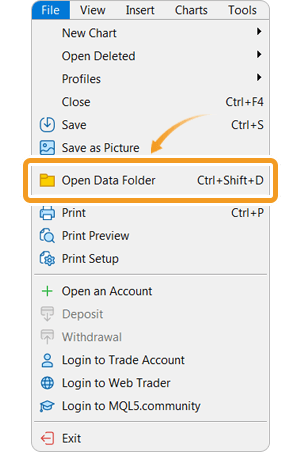
Click "File" from the menu bar at the top of MT4/MT5 and choose "Open Data Folder".
Step 2
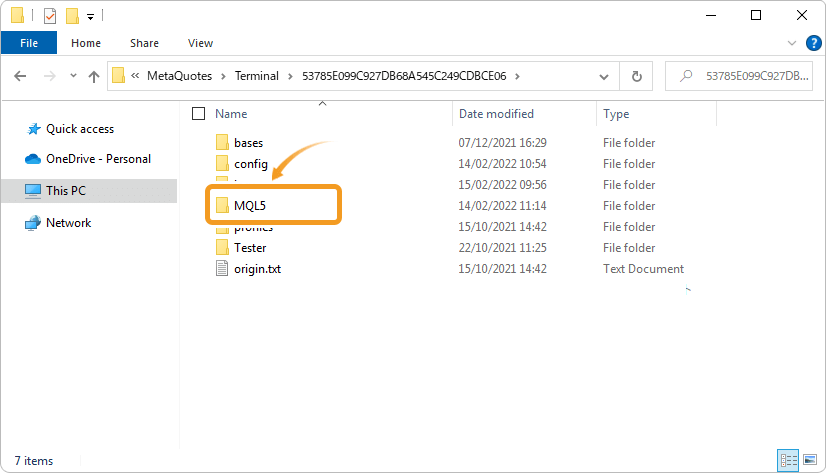
After opening the data folder, double-click the folder "MQL5 (MQL4 for MT4)" in it to open it.
Step 3
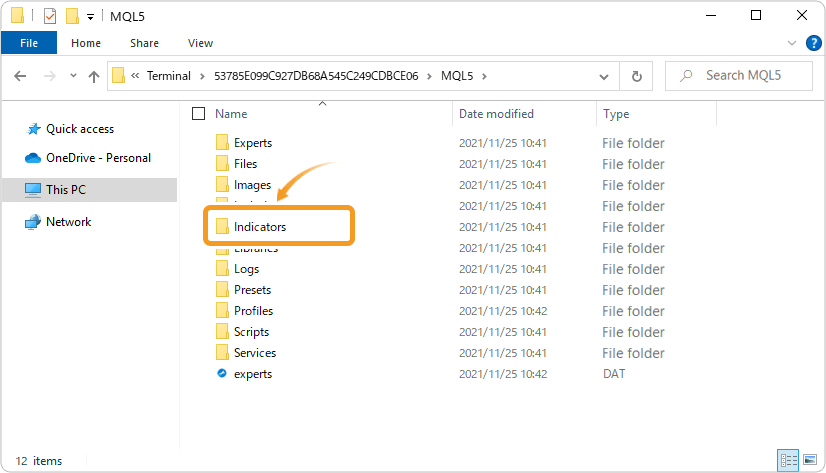
Double-click to open the "Indicators" folder in the MQL5 folder.
Step 4
Save the "[Myforex] Moving Average Deviation Rate Indicator" in the "Indicators" folder.

Step 5
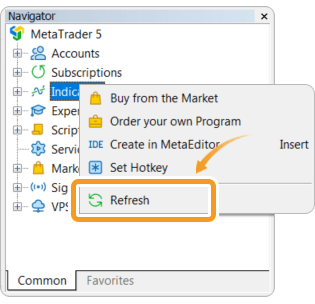
Once the file is in the folder, right-click "Indicators" in the Navigator and choose "Refresh" from the displayed menu.
Step 6
After checking that Moving Average Deviation Rate Indicator is shown in the "Indicators" of the Navigator, apply it to a chart by double-clicking or dragging and dropping.
If you can't see the Navigator window, Go to the menu bar and select "View" → "Navigator". Alternatively, press Ctrl+N to show or hide the Navigator window.


Step 7
Refer to the "How to set up" page to make further settings in the "Inputs" tab, then click "OK".
If the indicator can't be added to a chart, Verify that the indicator is saved in the Indicators folder and that the file name has not been changed. If it still doesn't appear after refreshing the Navigator window, restart MT5 and try again.
How to set up
After applying the indicator to the chart, set the parameters according to your style.
Step 1
First, open the "Inputs" tab.

Step 2
Set the parameters as follows.
General Settings
| Item name | Description |
|---|---|
| Display Mode | Choose the display mode from DISPLAY_HISTOGRAM, DISPLAY_LINE (a single line), or DISPLAY_MULTI_LINE (up to three lines across periods). |
| Deviation Unit | Choose the unit used to calculate and display the deviation rate: DEVIATION_PERCENT (percentage relative to the MA) or DEVIATION_PIPS (pips). |
| Level Mode | Choose the calculation method for the upper and lower levels: LEVEL_FIXED (fixed input value) or LEVEL_DEVIATION_STATIC (calculated from standard deviation). |
| Signal Mode | Choose the signal mode: SIGNAL_OFF (no signals or alerts) or SIGNAL_EXTREME_RETURN (signals when the deviation rate returns within the upper and lower levels). |
| Use Confirmed Bar | When ON, only confirmed bars are used to generate signals. When OFF, open bars are also used, which may cause signals to change by the time the bars are confirmed. |
| Use Confirmed HTF Bar | Use confirmed bars from the higher timeframe to calculate the MTF deviation rate. |
| Max Calculation Bars | Set the maximum number of bars to process at a time. A larger value allows more bars to be included in the calculation, but may slow down processing. |
| Display Mode |
| Choose the display mode from DISPLAY_HISTOGRAM, DISPLAY_LINE (a single line), or DISPLAY_MULTI_LINE (up to three lines across periods). |
| Deviation Unit |
| Choose the unit used to calculate and display the deviation rate: DEVIATION_PERCENT (percentage relative to the MA) or DEVIATION_PIPS (pips). |
| Level Mode |
| Choose the calculation method for the upper and lower levels: LEVEL_FIXED (fixed input value) or LEVEL_DEVIATION_STATIC (calculated from standard deviation). |
| Signal Mode |
| Choose the signal mode: SIGNAL_OFF (no signals or alerts) or SIGNAL_EXTREME_RETURN (signals when the deviation rate returns within the upper and lower levels). |
| Use Confirmed Bar |
| When ON, only confirmed bars are used to generate signals. When OFF, open bars are also used, which may cause signals to change by the time the bars are confirmed. |
| Use Confirmed HTF Bar |
| Use confirmed bars from the higher timeframe to calculate the MTF deviation rate. |
| Max Calculation Bars |
| Set the maximum number of bars to process at a time. A larger value allows more bars to be included in the calculation, but may slow down processing. |
Main Settings
| Item name | Description |
|---|---|
| Main Timeframe | Choose the timeframe used to calculate the main deviation rate. To use the timeframe of the current chart, choose "current." |
| Main MA Type | Choose the main MA type from Simple, Exponential, Smoothed, or Linear Weighted. |
| Main MA Period | Set the main MA period. |
| Main Applied Price | Choose the price type used for main MA calculation (e.g., close, open, high, or low). |
| Main Timeframe |
| Choose the timeframe used to calculate the main deviation rate. To use the timeframe of the current chart, choose "current." |
| Main MA Type |
| Choose the main MA type from Simple, Exponential, Smoothed, or Linear Weighted. |
| Main MA Period |
| Set the main MA period. |
| Main Applied Price |
| Choose the price type used for main MA calculation (e.g., close, open, high, or low). |
MTF Settings
| Item name | Description |
|---|---|
| Use MTF | Calculate the deviation rate from another timeframe along with the main rate in histogram or single-line mode. This option is not available in multi-line mode. |
| MTF Timeframe | Choose the higher timeframe used for the MTF calculation. |
| MTF MA Type | Choose the MA type used for the MTF calculation. |
| MTF MA Period | Set the MA period used for the MTF calculation. |
| MTF Applied Price | Select the price type used for the MTF calculation. |
| Use MTF |
| Calculate the deviation rate from another timeframe along with the main rate in histogram or single-line mode. This option is not available in multi-line mode. |
| MTF Timeframe |
| Choose the higher timeframe used for the MTF calculation. |
| MTF MA Type |
| Choose the MA type used for the MTF calculation. |
| MTF MA Period |
| Set the MA period used for the MTF calculation. |
| MTF Applied Price |
| Select the price type used for the MTF calculation. |
Multi Line Settings
| Item name | Description |
|---|---|
| Show Multi Line 1 | Plot Multi Line 1 when using multi-line mode. |
| Multi 1 Timeframe | Choose the timeframe used to calculate Multi Line 1. |
| Multi 1 MA Type | Choose the MA type of Multi Line 1. |
| Multi 1 MA Period | Choose the MA period for Multi Line 1 (default: 5). |
| Multi 1 Applied Price | Choose the price type used to calculate Multi Line 1. |
| Show Multi Line 2 | Plot Multi Line 2 when using multi-line mode. |
| Multi 2 Timeframe | Choose the timeframe used to calculate Multi Line 2. |
| Multi 2 MA Type | Choose the MA type of Multi Line 2. |
| Multi 2 MA Period | Choose the MA period for Multi Line 2 (default: 25). |
| Multi 2 Applied Price | Choose the price type used to calculate Multi Line 2. |
| Show Multi Line 3 | Plot Multi Line 3 when using multi-line mode. |
| Multi 3 Timeframe | Choose the timeframe used to calculate Multi Line 3. |
| Multi 3 MA Type | Choose the MA type of Multi Line 3. |
| Multi 3 MA Period | Choose the MA period for Multi Line 3 (default: 75). |
| Multi 3 Applied Price | Choose the price type used to calculate Multi Line 3. |
| Show Multi Line 1 |
| Plot Multi Line 1 when using multi-line mode. |
| Multi 1 Timeframe |
| Choose the timeframe used to calculate Multi Line 1. |
| Multi 1 MA Type |
| Choose the MA type of Multi Line 1. |
| Multi 1 MA Period |
| Choose the MA period for Multi Line 1 (default: 5). |
| Multi 1 Applied Price |
| Choose the price type used to calculate Multi Line 1. |
| Show Multi Line 2 |
| Plot Multi Line 2 when using multi-line mode. |
| Multi 2 Timeframe |
| Choose the timeframe used to calculate Multi Line 2. |
| Multi 2 MA Type |
| Choose the MA type of Multi Line 2. |
| Multi 2 MA Period |
| Choose the MA period for Multi Line 2 (default: 25). |
| Multi 2 Applied Price |
| Choose the price type used to calculate Multi Line 2. |
| Show Multi Line 3 |
| Plot Multi Line 3 when using multi-line mode. |
| Multi 3 Timeframe |
| Choose the timeframe used to calculate Multi Line 3. |
| Multi 3 MA Type |
| Choose the MA type of Multi Line 3. |
| Multi 3 MA Period |
| Choose the MA period for Multi Line 3 (default: 75). |
| Multi 3 Applied Price |
| Choose the price type used to calculate Multi Line 3. |
Pips Settings
| Item name | Description |
|---|---|
| Pip Size Mode | Choose how to determine the pip size used for pip value calculation: PIP_SIZE_AUTO (estimated from the instrument's number of digits) or PIP_SIZE_MANUAL (uses the Manual Pip Size value below). |
| Manual Pip Size | Specify the pip size to use when Pip Size Mode is set to PIP_SIZE_MANUAL. For reference, the pip size for most currency pairs is 0.0001, except for JPY pairs, which is 0.01. Adjust the value according to the instrument. |
| Pip Size Mode |
| Choose how to determine the pip size used for pip value calculation: PIP_SIZE_AUTO (estimated from the instrument's number of digits) or PIP_SIZE_MANUAL (uses the Manual Pip Size value below). |
| Manual Pip Size |
| Specify the pip size to use when Pip Size Mode is set to PIP_SIZE_MANUAL. For reference, the pip size for most currency pairs is 0.0001, except for JPY pairs, which is 0.01. Adjust the value according to the instrument. |
Deviation Static Settings
| Item name | Description |
|---|---|
| Deviation SD Period | Set the number of bars used to calculate standard deviation when Level Mode is LEVEL_DEVIATION_STATIC. |
| SD Multiplier 1 | Set the standard deviation multiplier for the inner levels, which signal early overextension. |
| SD Multiplier 2 | Set the standard deviation multiplier for the outer levels, which trigger buy/sell signals. |
| Deviation SD Period |
| Set the number of bars used to calculate standard deviation when Level Mode is LEVEL_DEVIATION_STATIC. |
| SD Multiplier 1 |
| Set the standard deviation multiplier for the inner levels, which signal early overextension. |
| SD Multiplier 2 |
| Set the standard deviation multiplier for the outer levels, which trigger buy/sell signals. |
Fixed Level Settings
| Item name | Description |
|---|---|
| Percent Upper Level 1 | Set the upper guide level when Level Mode is set to fixed and Deviation Unit is %. |
| Percent Upper Level 2 | Set the upper signal threshold level when Level Mode is set to fixed and Deviation Unit is %. |
| Percent Lower Level 1 | Set the lower guide level when Level Mode is set to fixed and Deviation Unit is %. |
| Percent Lower Level 2 | Set the lower signal threshold level when Level Mode is set to fixed and Deviation Unit is %. |
| Pips Upper Level 1 | Set the upper guide level when Level Mode is set to fixed and Deviation Unit is pips. |
| Pips Upper Level 2 | Set the upper signal threshold level when Level Mode is set to fixed and Deviation Unit is pips. |
| Pips Lower Level 1 | Set the lower guide level when Level Mode is set to fixed and Deviation Unit is pips. |
| Pips Lower Level 2 | Set the lower signal threshold level when Level Mode is set to fixed and Deviation Unit is pips. |
| Percent Upper Level 1 |
| Set the upper guide level when Level Mode is set to fixed and Deviation Unit is %. |
| Percent Upper Level 2 |
| Set the upper signal threshold level when Level Mode is set to fixed and Deviation Unit is %. |
| Percent Lower Level 1 |
| Set the lower guide level when Level Mode is set to fixed and Deviation Unit is %. |
| Percent Lower Level 2 |
| Set the lower signal threshold level when Level Mode is set to fixed and Deviation Unit is %. |
| Pips Upper Level 1 |
| Set the upper guide level when Level Mode is set to fixed and Deviation Unit is pips. |
| Pips Upper Level 2 |
| Set the upper signal threshold level when Level Mode is set to fixed and Deviation Unit is pips. |
| Pips Lower Level 1 |
| Set the lower guide level when Level Mode is set to fixed and Deviation Unit is pips. |
| Pips Lower Level 2 |
| Set the lower signal threshold level when Level Mode is set to fixed and Deviation Unit is pips. |
Level Display
| Item name | Description |
|---|---|
| Show Zero Line | Display the zero deviation line. |
| Show Level Lines | Display the upper and lower lines. |
| Show Level Value Labels | Display the value to the right of each upper and lower line. |
| Level Label Bars Ahead | Specify how many bars to shift the value labels to the right. |
| Level Label Font Size | Set the value label font size. |
| Show Zero Line |
| Display the zero deviation line. |
| Show Level Lines |
| Display the upper and lower lines. |
| Show Level Value Labels |
| Display the value to the right of each upper and lower line. |
| Level Label Bars Ahead |
| Specify how many bars to shift the value labels to the right. |
| Level Label Font Size |
| Set the value label font size. |
Signal Settings
| Item name | Description |
|---|---|
| Signal Interval | Set the minimum number of bars between signals of the same direction (buy/sell). |
| Show Arrows | Display buy/sell arrows. |
| Arrow Size | Set the arrow size. |
| Arrow Offset Mode | Choose how to calculate the offset distance for the arrow and latest value labels: OFFSET_AUTO (calculated based on the ratio to the display range) or OFFSET_MANUAL (uses the fixed value set in Manual Arrow Offset). |
| Arrow Offset Ratio | Set the offset ratio between arrows when Arrow Offset Mode is Auto. |
| Label Offset Ratio | Set the offset ratio between the latest labels when Arrow Offset Mode is set to Auto. |
| Manual Arrow Offset | Set the fixed offset between arrows when Arrow Offset Mode is Manual. |
| Show Latest Label | Display labels for the latest buy and sell signals. This option is not available when Show Arrows is set to Off. |
| Latest Label Font Size | Set the latest label font size. |
| Manual Label Offset Ratio | Set the offset ratio between the latest labels when Arrow Offset Mode is set to Manual. |
| Signal Interval |
| Set the minimum number of bars between signals of the same direction (buy/sell). |
| Show Arrows |
| Display buy/sell arrows. |
| Arrow Size |
| Set the arrow size. |
| Arrow Offset Mode |
| Choose how to calculate the offset distance for the arrow and latest value labels: OFFSET_AUTO (calculated based on the ratio to the display range) or OFFSET_MANUAL (uses the fixed value set in Manual Arrow Offset). |
| Arrow Offset Ratio |
| Set the offset ratio between arrows when Arrow Offset Mode is Auto. |
| Label Offset Ratio |
| Set the offset ratio between the latest labels when Arrow Offset Mode is set to Auto. |
| Manual Arrow Offset |
| Set the fixed offset between arrows when Arrow Offset Mode is Manual. |
| Show Latest Label |
| Display labels for the latest buy and sell signals. This option is not available when Show Arrows is set to Off. |
| Latest Label Font Size |
| Set the latest label font size. |
| Manual Label Offset Ratio |
| Set the offset ratio between the latest labels when Arrow Offset Mode is set to Manual. |
Display Colors
| Item name | Description |
|---|---|
| Positive Expanding Color | Set the color used when the deviation rate is increasing in the positive range of the histogram. |
| Positive Shrinking Color | Set the color used when the deviation rate is decreasing in the positive range of the histogram. |
| Negative Expanding Color | Set the color used when the deviation rate is increasing in the negative range of the histogram. |
| Negative Shrinking Color | Set the color used when the deviation rate is decreasing in the negative range of the histogram. |
| Main Line Color | Set the line color when using Display Line mode. |
| Multi 1 Line Color | Set the Multi Line 1 color. |
| Multi 2 Line Color | Set the Multi Line 2 color. |
| Multi 3 Line Color | Set the Multi Line 3 color. |
| Zero Line Color | Set the zero line color. |
| Deviation Static Line Color | Set the upper and lower line color when Level Mode is LEVEL_DEVIATION_STATIC. |
| Fixed Level Line Color | Set the upper and lower line color when Level Mode is LEVEL_FIXED. |
| Level Value Label Color | Set the color of upper and lower line value labels. |
| Buy Arrow Color | Set the buy arrow color. |
| Sell Arrow Color | Set the sell arrow color. |
| Mode Label Color | Set the mode label color at the top right of the subwindow. |
| Latest Label Color | Set the latest label color. |
| Positive Expanding Color |
| Set the color used when the deviation rate is increasing in the positive range of the histogram. |
| Positive Shrinking Color |
| Set the color used when the deviation rate is decreasing in the positive range of the histogram. |
| Negative Expanding Color |
| Set the color used when the deviation rate is increasing in the negative range of the histogram. |
| Negative Shrinking Color |
| Set the color used when the deviation rate is decreasing in the negative range of the histogram. |
| Main Line Color |
| Set the line color when using Display Line mode. |
| Multi 1 Line Color |
| Set the Multi Line 1 color. |
| Multi 2 Line Color |
| Set the Multi Line 2 color. |
| Multi 3 Line Color |
| Set the Multi Line 3 color. |
| Zero Line Color |
| Set the zero line color. |
| Deviation Static Line Color |
| Set the upper and lower line color when Level Mode is LEVEL_DEVIATION_STATIC. |
| Fixed Level Line Color |
| Set the upper and lower line color when Level Mode is LEVEL_FIXED. |
| Level Value Label Color |
| Set the color of upper and lower line value labels. |
| Buy Arrow Color |
| Set the buy arrow color. |
| Sell Arrow Color |
| Set the sell arrow color. |
| Mode Label Color |
| Set the mode label color at the top right of the subwindow. |
| Latest Label Color |
| Set the latest label color. |
Line Settings
| Item name | Description |
|---|---|
| Histogram Width | Set the histogram bar width. |
| Main Line Width | Set the line width when using Display Line mode. |
| Multi 1 Line Width | Set the Multi Line 1 width. |
| Multi 2 Line Width | Set the Multi Line 2 width. |
| Multi 3 Line Width | Set the Multi Line 3 width. |
| Main Line Style | Set the line style (solid, dotted, etc.) when using Display Line mode. |
| Level Line Style | Set the line style for the zero, upper, and lower lines. |
| Histogram Width |
| Set the histogram bar width. |
| Main Line Width |
| Set the line width when using Display Line mode. |
| Multi 1 Line Width |
| Set the Multi Line 1 width. |
| Multi 2 Line Width |
| Set the Multi Line 2 width. |
| Multi 3 Line Width |
| Set the Multi Line 3 width. |
| Main Line Style |
| Set the line style (solid, dotted, etc.) when using Display Line mode. |
| Level Line Style |
| Set the line style for the zero, upper, and lower lines. |
Mode Display
| Item name | Description |
|---|---|
| Show Mode Label | Display the mode label at the top right of the subwindow. |
| Show Mode Label |
| Display the mode label at the top right of the subwindow. |
Notification Settings
| Item name | Description |
|---|---|
| Popup Alert | Receive pop-up alerts on MT4/MT5 when signals are confirmed. |
| Push Notification | Receive push notifications on the mobile app when signals are confirmed. MT4/5 push notification settings must be configured first. |
| Email Notification | Receive emails at your registered address when signals are confirmed. MT4/5 email settings must be configured first. |
| Popup Alert |
| Receive pop-up alerts on MT4/MT5 when signals are confirmed. |
| Push Notification |
| Receive push notifications on the mobile app when signals are confirmed. MT4/5 push notification settings must be configured first. |
| Email Notification |
| Receive emails at your registered address when signals are confirmed. MT4/5 email settings must be configured first. |
 Notes on upper/lower lines and signals

Created
: 2026.10.01

Last updated
: 2026.10.06
Disclaimer:
All information and content provided on this website is provided for informational purposes only and is not intended to solicit any investment. Although all efforts are made in order to ensure that the information is correct, no guarantee is provided for the accuracy of any content on this website. Any decision made shall be the responsibility of the investor and Myforex does not take any responsibility whatsoever regarding the use of any information provided herein.
The copyright in our content belongs to us.
We welcome your use of our content within appropriate limits, including use through our sharing features, sharing on social media, and quotation. However, please refrain from unauthorized reuse, including but not limited to commercial use, reproduction with modification of content, or reproduction on websites that compete with us. We may take necessary measures, including but not limited to deletion of the relevant content, if we consider that the content has been used in an inappropriate or unauthorized manner.


Myforex uses cookies to improve the convenience and functionality of this website. This website may include cookies not only by us but also by third parties (advertisers, log analysts, etc.) for the purpose of tracking the activities of users. Cookie policy

Don't show this again


