



- English



- English
- What's Myforex
- Share
- Use tools
- Get information
- What's New
- Help center
- Customer support
- Terms and policies




-

-
 Real-time spread comparisonCompare spreads of major retail brokers in real time
-
 Volatility analysisVisualize volatility as a measure of daily market activity
-
 Swap point comparisonCompare buy and sell swap values for each broker by symbol
-
 Market rates & chartsCheck prices for all instruments offered by each broker
-
 MT4/MT5 indicatorsProviding in-house developed indicators for MT4/MT5
-
 Trading calculatorsCalculation tools for each broker to help you trade


【MT4/MT5】MA Ribbon MTF Signal Indicator

【MT4/MT5】MA Ribbon MTF Signal Indicator
- Overview
- How to install
- How to set up

Display:


The MA Ribbon MTF Signal Indicator is an MT4/MT5 indicator that fills the area between the short- and long-term MAs with a ribbon. It displays Cross, Touch, and Zone signals and overlays higher-timeframe (HTF) MAs to help identify trend direction and guide entry decisions.

Feature: Ribbon fill between two MAs
Visualize the area between the fast and slow MAs
This tool plots a short-term MA (default: 20) and a long-term MA (default: 80) on the main chart, filling the space between them with green during uptrends and brown during downtrends. You can quickly gauge trend direction and strength from the ribbon’s color and width without tracking the exact values of the two MAs.


Get buy and sell signals on MA crossovers
Cross Buy and Cross Sell signals appear as arrows when the fast MA crosses above or below the slow MA, respectively. You can set the Signal_Mode parameter to display only crossover signals.


Identify MA bounces with Touch Signal
Touch Buy and Touch Sell signals indicate when the price touches and bounces off the MA selected in Touch Target (fast MA, slow MA, or whichever is closer). A new signal is generated only when the price moves away from the MA after the initial touch and then retouches it, preventing multiple signals from appearing at the same level.


Spot ribbon breakouts with Zone Signal
Zone Buy and Zone Sell signals indicate when the price enters the ribbon between two MAs and then breaks out of it. Useful for identifying breakouts following a pullback or retracement.


Plot HTF MAs as a ribbon
When Use_MTF is enabled, you can assign different timeframes to the fast and slow MAs, allowing HTF MAs to be displayed as a ribbon on the current chart. It supplements your entry decisions on the current timeframe, with an optional smoothing feature for a cleaner display.


How to install
To use the MA Ribbon MTF Signal Indicator, install the "[Myforex] MA Ribbon MTF Signal Indicator" file on MetaTrader4 (MT4) / MetaTrader5 (MT5).
Step 1
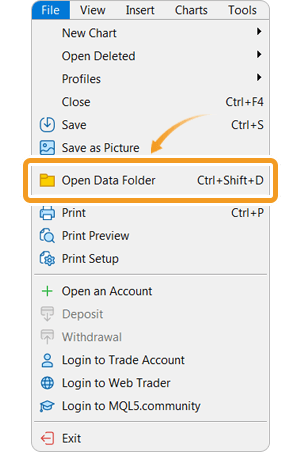
Click "File" from the menu bar at the top of MT4/MT5 and choose "Open Data Folder".
Step 2
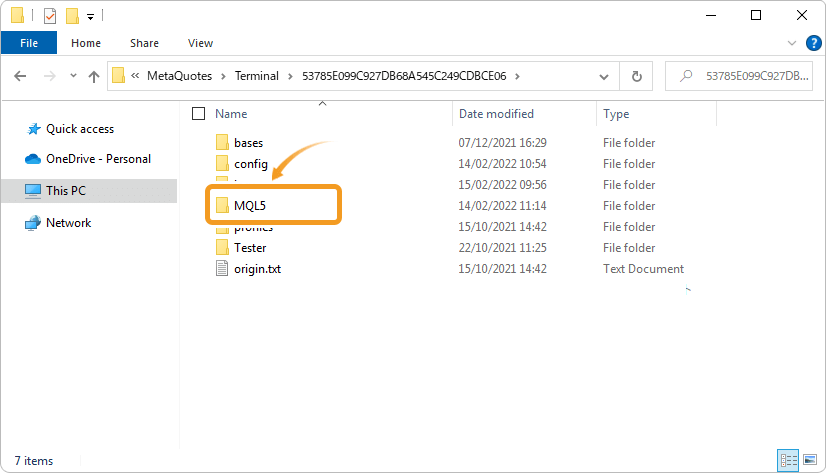
After opening the data folder, double-click the folder "MQL5 (MQL4 for MT4)" in it to open it.
Step 3
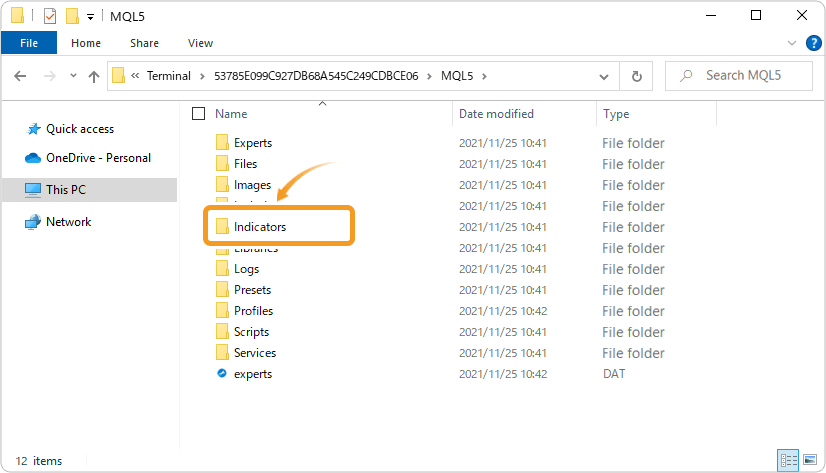
Double-click to open the "Indicators" folder in the MQL5 folder.
Step 4
Save the "[Myforex] MA Ribbon MTF Signal Indicator" in the "Indicators" folder.

Step 5
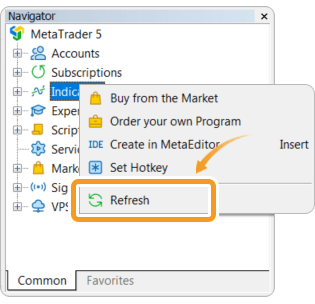
Once the file is in the folder, right-click "Indicators" in the Navigator and choose "Refresh" from the displayed menu.
Step 6
After checking that MA Ribbon MTF Signal Indicator is shown in the "Indicators" of the Navigator, apply it to a chart by double-clicking or dragging and dropping.
If you can't see the Navigator window, Go to the menu bar and select "View" → "Navigator". Alternatively, press Ctrl+N to show or hide the Navigator window.


Step 7
Refer to the "How to set up" page to make further settings in the "Inputs" tab, then click "OK".
If the indicator can't be added to a chart, Verify that the indicator is saved in the Indicators folder and that the file name has not been changed. If it still doesn't appear after refreshing the Navigator window, restart MT5 and try again.
How to set up
After applying the indicator to the chart, set the parameters according to your style.
Step 1
First, open the "Inputs" tab.

Step 2
Set the parameters as follows.
General Settings
| Item name | Description |
|---|---|
| Signal Mode | Choose which signals to display. Focus on crossovers or select other options, including MA Touch, Ribbon Zone, Touch + Zone, or All Signals. |
| Use Confirmed Bar | When it is ON, only confirmed bars are used to trigger signals. Keep this enabled if you prefer to exclude uncertain, ongoing bars from signal calculations. |
| Signal Interval | Set the minimum number of bars required between signals of the same type and direction. |
| Max Calculation Bars | Set the maximum number of past bars used for signal and ribbon calculations. |
| Signal Mode |
| Choose which signals to display. Focus on crossovers or select other options, including MA Touch, Ribbon Zone, Touch + Zone, or All Signals. |
| Use Confirmed Bar |
| When it is ON, only confirmed bars are used to trigger signals. Keep this enabled if you prefer to exclude uncertain, ongoing bars from signal calculations. |
| Signal Interval |
| Set the minimum number of bars required between signals of the same type and direction. |
| Max Calculation Bars |
| Set the maximum number of past bars used for signal and ribbon calculations. |
Fast Moving Average
| Item name | Description |
|---|---|
| Fast MA Period | Set the fast MA period. |
| Fast MA Method | Choose the fast MA type from Simple, Exponential, Smoothed, or Linear Weighted. |
| Fast MA Applied Price | Select the price type used for fast MA calculation (e.g., close). |
| Fast MA Color/Width/Style | Set the color, width, style of the fast MA line. |
| Fast MA Period |
| Set the fast MA period. |
| Fast MA Method |
| Choose the fast MA type from Simple, Exponential, Smoothed, or Linear Weighted. |
| Fast MA Applied Price |
| Select the price type used for fast MA calculation (e.g., close). |
| Fast MA Color/Width/Style |
| Set the color, width, style of the fast MA line. |
Slow Moving Average
| Item name | Description |
|---|---|
| Slow MA Period | Set the slow MA period. |
| Slow MA Method | Choose the slow MA type from Simple, Exponential, Smoothed, or Linear Weighted. |
| Slow MA Applied Price | Select the price type used for slow MA calculation (e.g., close). |
| Slow MA Color/Width/Style | Set the color, width, style of the slow MA line. |
| Slow MA Period |
| Set the slow MA period. |
| Slow MA Method |
| Choose the slow MA type from Simple, Exponential, Smoothed, or Linear Weighted. |
| Slow MA Applied Price |
| Select the price type used for slow MA calculation (e.g., close). |
| Slow MA Color/Width/Style |
| Set the color, width, style of the slow MA line. |
Ribbon Settings
| Item name | Description |
|---|---|
| Show Ribbon | Fill the area between two MAs as a ribbon. |
| Use Ribbon Width Filter | Treat the ribbon as NEUTRAL when it is narrower than the minimum width. |
| Minimum Ribbon Width | Define the width threshold for NEUTRAL status when Use Ribbon Width Filter is enabled. |
| Buy/Sell Ribbon Color | Set the ribbon colors for uptrends and downtrends. |
| Show Ribbon |
| Fill the area between two MAs as a ribbon. |
| Use Ribbon Width Filter |
| Treat the ribbon as NEUTRAL when it is narrower than the minimum width. |
| Minimum Ribbon Width |
| Define the width threshold for NEUTRAL status when Use Ribbon Width Filter is enabled. |
| Buy/Sell Ribbon Color |
| Set the ribbon colors for uptrends and downtrends. |
Touch/Zone Settings
| Item name | Description |
|---|---|
| Touch Target | Choose which MA triggers Touch Signals: fast, slow, or closer MA. |
| Touch Tolerance | Set the touch threshold for determining when price touches the MA. |
| Zone Detection Mode | Choose how price entry into the ribbon is detected: candle shadow, body, close, etc. |
| Touch Target |
| Choose which MA triggers Touch Signals: fast, slow, or closer MA. |
| Touch Tolerance |
| Set the touch threshold for determining when price touches the MA. |
| Zone Detection Mode |
| Choose how price entry into the ribbon is detected: candle shadow, body, close, etc. |
MTF Settings
| Item name | Description |
|---|---|
| Use Multi-Timeframe MA | Enable this option to use different timeframes for the fast and slow MAs. |
| Fast/Slow MA Timeframe | Set the timeframes for the fast and slow MAs when "Use Multi-Timeframe MA" is enabled. |
| Smooth MTF MA | Enable this option to smooth HTF MAs without affecting signal detection. |
| Use Multi-Timeframe MA |
| Enable this option to use different timeframes for the fast and slow MAs. |
| Fast/Slow MA Timeframe |
| Set the timeframes for the fast and slow MAs when "Use Multi-Timeframe MA" is enabled. |
| Smooth MTF MA |
| Enable this option to smooth HTF MAs without affecting signal detection. |
Display Settings
| Item name | Description |
|---|---|
| Show Arrows | Display Cross/Touch/Zone signals. Notifications will still be sent when this option is disabled. |
| Show Mode Label | Display the active signal mode in the top-right corner of the chart. |
| Show Status Label | Display the ribbon status (BUY/SELL/NEUTRAL) in the top-right corner of the chart. |
| Show Latest Label | Display labels for the most recent signal of each type. |
| Show Arrows |
| Display Cross/Touch/Zone signals. Notifications will still be sent when this option is disabled. |
| Show Mode Label |
| Display the active signal mode in the top-right corner of the chart. |
| Show Status Label |
| Display the ribbon status (BUY/SELL/NEUTRAL) in the top-right corner of the chart. |
| Show Latest Label |
| Display labels for the most recent signal of each type. |
Notification Settings
| Item name | Description |
|---|---|
| Enable Alert | Receive pop-up alerts on MT4/MT5 when signals appear. |
| Enable Push Notification | Receive push notifications on the mobile app when signals appear. Link your MetaQuotes ID on MT4/MT5 first. |
| Enable Email | Receive emails when signals appear. MT4/MT5 email settings must be configured beforehand. |
| Enable Alert |
| Receive pop-up alerts on MT4/MT5 when signals appear. |
| Enable Push Notification |
| Receive push notifications on the mobile app when signals appear. Link your MetaQuotes ID on MT4/MT5 first. |
| Enable Email |
| Receive emails when signals appear. MT4/MT5 email settings must be configured beforehand. |
 Note

Created
: 2026.10.16

Last updated
: 2026.10.20
Disclaimer:
All information and content provided on this website is provided for informational purposes only and is not intended to solicit any investment. Although all efforts are made in order to ensure that the information is correct, no guarantee is provided for the accuracy of any content on this website. Any decision made shall be the responsibility of the investor and Myforex does not take any responsibility whatsoever regarding the use of any information provided herein.
The copyright in our content belongs to us.
We welcome your use of our content within appropriate limits, including use through our sharing features, sharing on social media, and quotation. However, please refrain from unauthorized reuse, including but not limited to commercial use, reproduction with modification of content, or reproduction on websites that compete with us. We may take necessary measures, including but not limited to deletion of the relevant content, if we consider that the content has been used in an inappropriate or unauthorized manner.



Myforex uses cookies to improve the convenience and functionality of this website. This website may include cookies not only by us but also by third parties (advertisers, log analysts, etc.) for the purpose of tracking the activities of users. Cookie policy

Don't show this again


