



- English



- English
- What's Myforex
- Share
- Use tools
- Get information
- What's New
- Help center
- Customer support
- Terms and policies




-

-
 Real-time spread comparisonCompare spreads of major retail brokers in real time
-
 Volatility analysisVisualize volatility as a measure of daily market activity
-
 Swap point comparisonCompare buy and sell swap values for each broker by symbol
-
 Market rates & chartsCheck prices for all instruments offered by each broker
-
 MT4/MT5 indicatorsProviding in-house developed indicators for MT4/MT5
-
 Trading calculatorsCalculation tools for each broker to help you trade



【MT4/MT5】Profit Calendar

- Overview
- How to install
- How to set up

Display:


The Profit Calendar helps you track daily and monthly trading results on MT4 and 5 charts, including P&L, maximum floating loss, win rate, total trades, and MoM growth. Apply filters for buy/sell trades, magic numbers, and symbols to analyze results separately for manual trading and each EA.

Features
Visualize your performance on a calendar
Check your profit and loss for every trading day with the on-chart calendar. The monthly performance section summarizes key metrics including net P&L, win rate, maximum floating loss, total trades, and MoM growth, giving you a clear overview of your daily and monthly trading performance.


Keep track of maximum floating loss
Besides profit and loss, the calendar can also display the maximum floating loss for each trading day, a key metric that is often overlooked. Tracking floating loss helps you better manage risk and optimize your trading strategy.


Filter data by buy/sell, magic numbers, and symbols
Filter trades using the All, Buy, and Sell buttons. You can further refine the results by selecting specific magic numbers or symbols in the Filter window.


Daily trade breakdown and memo
Select a date to see total trades, profit and loss, and a detailed breakdown of trades for that day. Each entry includes time, symbol, P&L, magic number, and volume. You can also add comments for review using the memo field.


Autosave data with notifications and CSV
Receive daily, weekly, and monthly notifications through alerts, emails, and push notifications on MT4/MT5. Enable daily CSV export to automatically save total trades, P&L, maximum floating loss, and win rate as a file every midnight.

CSV storage location and data fields
Automatically export your daily trading history to CSV files. Exported files are stored in the MQL5\Files\MPLT\ (or MQL4\Files\MPLT\) directory and record the number of trades, total profit, maximum floating loss, and win rate.

How to install
To use the Profit Calendar, install the "[Myforex] Profit Calendar" file on MetaTrader4/MetaTrader5.
Step 1
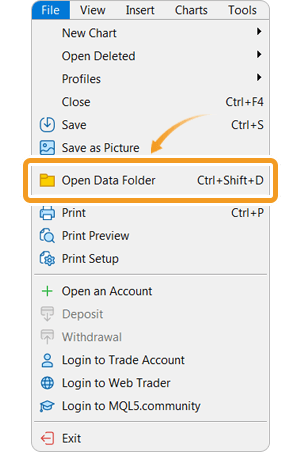
Click "File" from the menu bar at the top of MetaTrader4/MetaTrader5 and choose "Open Data Folder".
Step 2
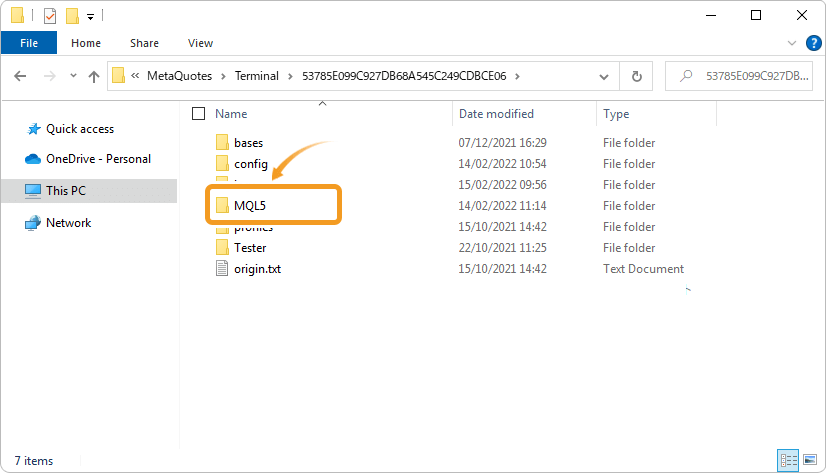
After opening the data folder, double-click the folder "MQL5 (MQL4 for MetaTrader4)" in it to open it.
Step 3
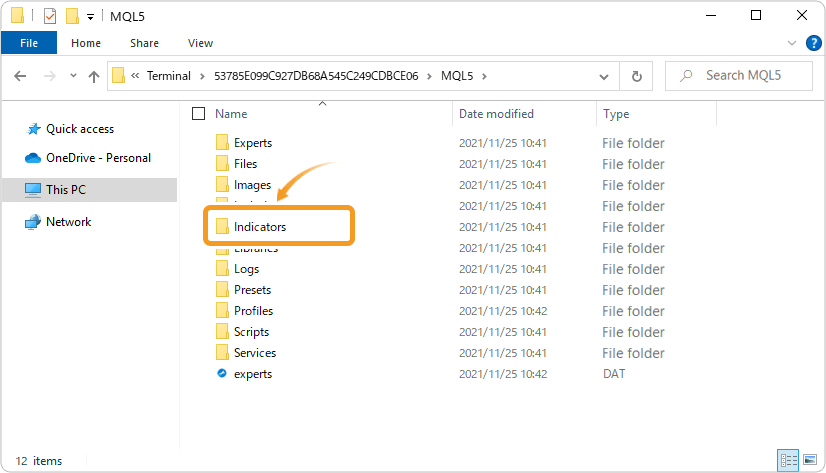
Double-click to open the "Indicators" folder in the MQL5 file.
Step 4
Save the "[Myforex] Profit Calendar" in the "Indicators" folder.

Step 5
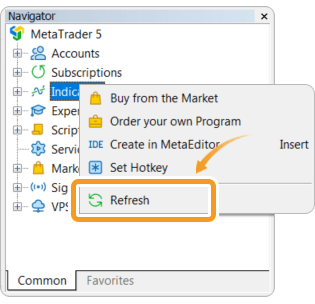
Once the file is in the folder, right-click "Indicators" in the Navigator and choose "Refresh" from the displayed menu.
Step 6
After checking that the Profit Calendar is shown in the "Indicators" of the Navigator, apply it to a chart by double-clicking or dragging and dropping.


Step 7
Refer to the "How to set up" page to make further settings in the "Inputs" tab, then click "OK".
How to set up
After applying the indicator to the chart, set the parameters according to your style.
Step 1
First, open the "Inputs" tab.

Step 2
Set the parameters as follows.
General Settings
| Item name | Description |
|---|---|
| Auto Adjust Server GMT | Enable this option to automatically adjust the time difference with the server time. Keep it enabled for normal use. |
| Server GMT | Used when Auto Adjust Server GMT is turned off. For example, if your server time is GMT+2, enter 2. |
| Auto Adjust Server GMT |
| Enable this option to automatically adjust the time difference with the server time. Keep it enabled for normal use. |
| Server GMT |
| Used when Auto Adjust Server GMT is turned off. For example, if your server time is GMT+2, enter 2. |
Display Settings
| Item name | Description |
|---|---|
| Calendar Display Size | Choose the calendar size. If the calendar is cut off on the chart, select a smaller size. |
| Week Start Day | Choose whether the week starts on Monday or Sunday. |
| Account Label | Set the text displayed in the calendar header and notifications. |
| Show Max Floating Loss | Enable this option to show the max floating loss on the calendar. |
| Color Preset | Choose a color scheme: Dark, Light, or Custom. When Custom is selected, you can change the color of each element individually. |
| Calendar Display Size |
| Choose the calendar size. If the calendar is cut off on the chart, select a smaller size. |
| Week Start Day |
| Choose whether the week starts on Monday or Sunday. |
| Account Label |
| Set the text displayed in the calendar header and notifications. |
| Show Max Floating Loss |
| Enable this option to show the max floating loss on the calendar. |
| Color Preset |
| Choose a color scheme: Dark, Light, or Custom. When Custom is selected, you can change the color of each element individually. |
CSV Settings
| Item name | Description |
|---|---|
| Record Daily at 00:00 | Enable this option to automatically save the daily results to a CSV file every day at 00:00. |
| Record Daily at 00:00 |
| Enable this option to automatically save the daily results to a CSV file every day at 00:00. |
Notification Settings
| Item name | Description |
|---|---|
| Daily Notification | Enable this option to receive daily result notifications every day at 00:00. |
| Weekly Notification | Enable this option to receive weekly result notifications on the first day of each week at 00:00. |
| Monthly Notification | Enable this option to receive monthly result notifications on the first day of each month at 00:00. |
| Alert | Enable this option to show a pop-up alert for each new notification. |
| Send Mail | Enable this option to receive an email for each new notification. MT4/5 email settings must be configured first. |
| Push Notification | Enable this option to receive push notifications on the MT4/5 app. MT4/5 notification settings must be configured first. |
| Run Notification Test | Send a test notification to confirm that alerts, emails, and push notifications are working properly. |
| Daily Notification |
| Enable this option to receive daily result notifications every day at 00:00. |
| Weekly Notification |
| Enable this option to receive weekly result notifications on the first day of each week at 00:00. |
| Monthly Notification |
| Enable this option to receive monthly result notifications on the first day of each month at 00:00. |
| Alert |
| Enable this option to show a pop-up alert for each new notification. |
| Send Mail |
| Enable this option to receive an email for each new notification. MT4/5 email settings must be configured first. |
| Push Notification |
| Enable this option to receive push notifications on the MT4/5 app. MT4/5 notification settings must be configured first. |
| Run Notification Test |
| Send a test notification to confirm that alerts, emails, and push notifications are working properly. |
Custom Color Settings
| Item name | Description |
|---|---|
| Background Color | Set the background color for the calendar. |
| Weekday Background | Set the background color for weekday cells. |
| Holiday Background | Set the background color for weekend and holiday cells. |
| Header Background | Set the background color for the header. |
| Selected Button Background | Set the background color for active All/Buy/Sell/Filter buttons. |
| Unselected Button Background | Set the background color for inactive All/Buy/Sell/Filter buttons. |
| Main Text Color | Set the primary font color used for the month label, monthly data values, and other text. |
| Sub Text Color | Set the secondary font color used for the date label, monthly data label, and other text. |
| Profit Text Color | Set the font color for profit values. |
| Loss Text Color | Set the font color for loss values. |
| Today Accent Color | Set the font color to highlight the current date. |
| Background Color |
| Set the background color for the calendar. |
| Weekday Background |
| Set the background color for weekday cells. |
| Holiday Background |
| Set the background color for weekend and holiday cells. |
| Header Background |
| Set the background color for the header. |
| Selected Button Background |
| Set the background color for active All/Buy/Sell/Filter buttons. |
| Unselected Button Background |
| Set the background color for inactive All/Buy/Sell/Filter buttons. |
| Main Text Color |
| Set the primary font color used for the month label, monthly data values, and other text. |
| Sub Text Color |
| Set the secondary font color used for the date label, monthly data label, and other text. |
| Profit Text Color |
| Set the font color for profit values. |
| Loss Text Color |
| Set the font color for loss values. |
| Today Accent Color |
| Set the font color to highlight the current date. |
 Important notes
All/Buy/Sell/Filter options cannot be configured in the Inputs tab. Use these buttons on the calendar after applying the tool to the chart.

Created
: 2026.10.09

Last updated
: 2026.10.20
Disclaimer:
All information and content provided on this website is provided for informational purposes only and is not intended to solicit any investment. Although all efforts are made in order to ensure that the information is correct, no guarantee is provided for the accuracy of any content on this website. Any decision made shall be the responsibility of the investor and Myforex does not take any responsibility whatsoever regarding the use of any information provided herein.
The copyright in our content belongs to us.
We welcome your use of our content within appropriate limits, including use through our sharing features, sharing on social media, and quotation. However, please refrain from unauthorized reuse, including but not limited to commercial use, reproduction with modification of content, or reproduction on websites that compete with us. We may take necessary measures, including but not limited to deletion of the relevant content, if we consider that the content has been used in an inappropriate or unauthorized manner.



Myforex uses cookies to improve the convenience and functionality of this website. This website may include cookies not only by us but also by third parties (advertisers, log analysts, etc.) for the purpose of tracking the activities of users. Cookie policy

Don't show this again


